Know what needs you. Ignore the rest.
Clair is a workspace for people who run a business alone. You map what you're juggling once, in a tree. Clair then watches your own activity and tells you what needs you — without you having to put a date on everything. This page is the whole product, section by section; read it in order the first time, then come back to the part you need.
First run: set up with Zia
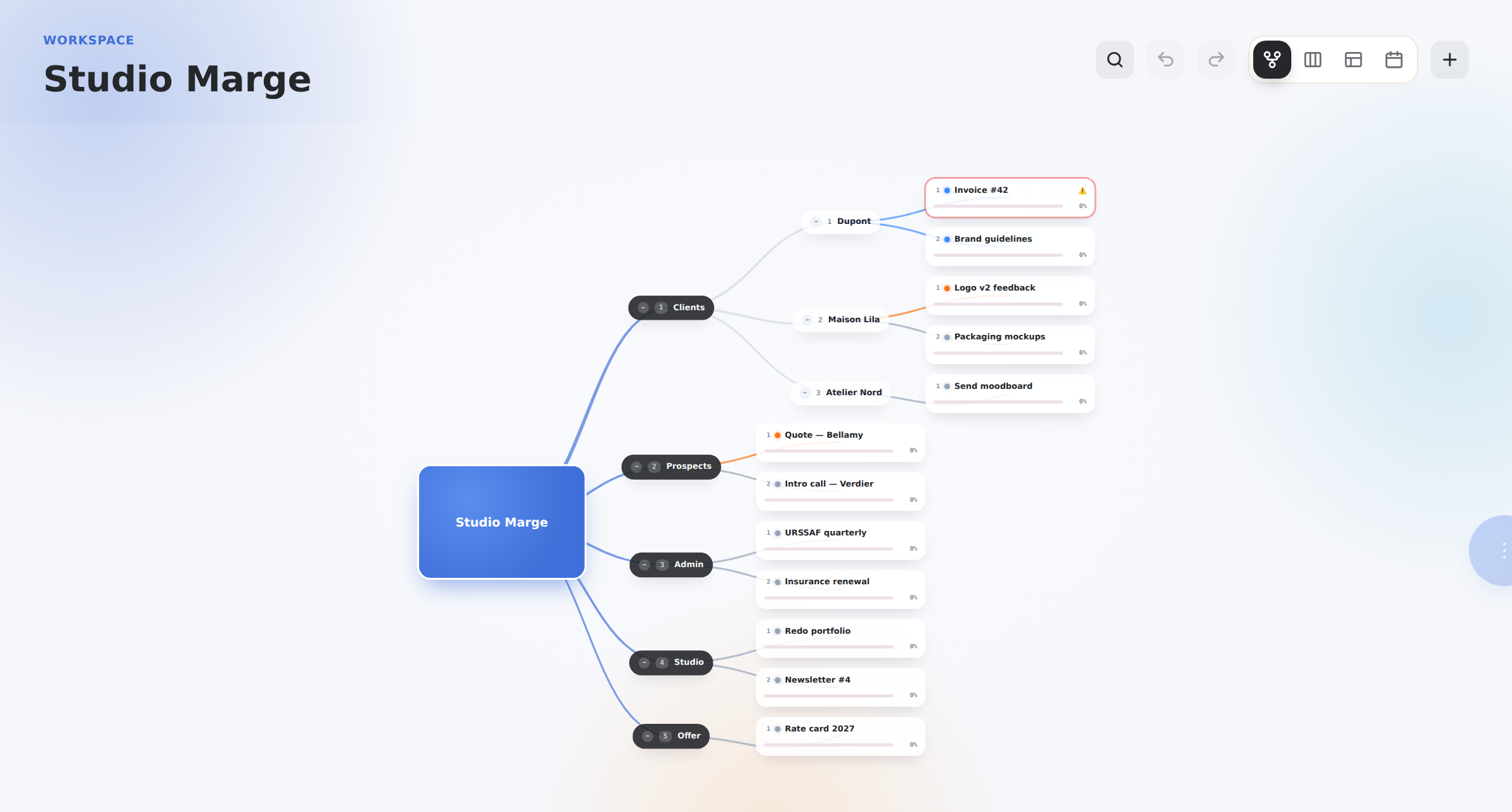
Clair opens on Needs my attention. On a brand-new account there is nothing on it yet, which is correct and not an error — click Workspace in the sidebar and you will find Zia beside an empty tree.
Describe your situation in a sentence or two: who you work for right now, and what else is on your plate. She proposes a first tree — clients, prospects, admin, marketing, what you sell — with no dates on anything.
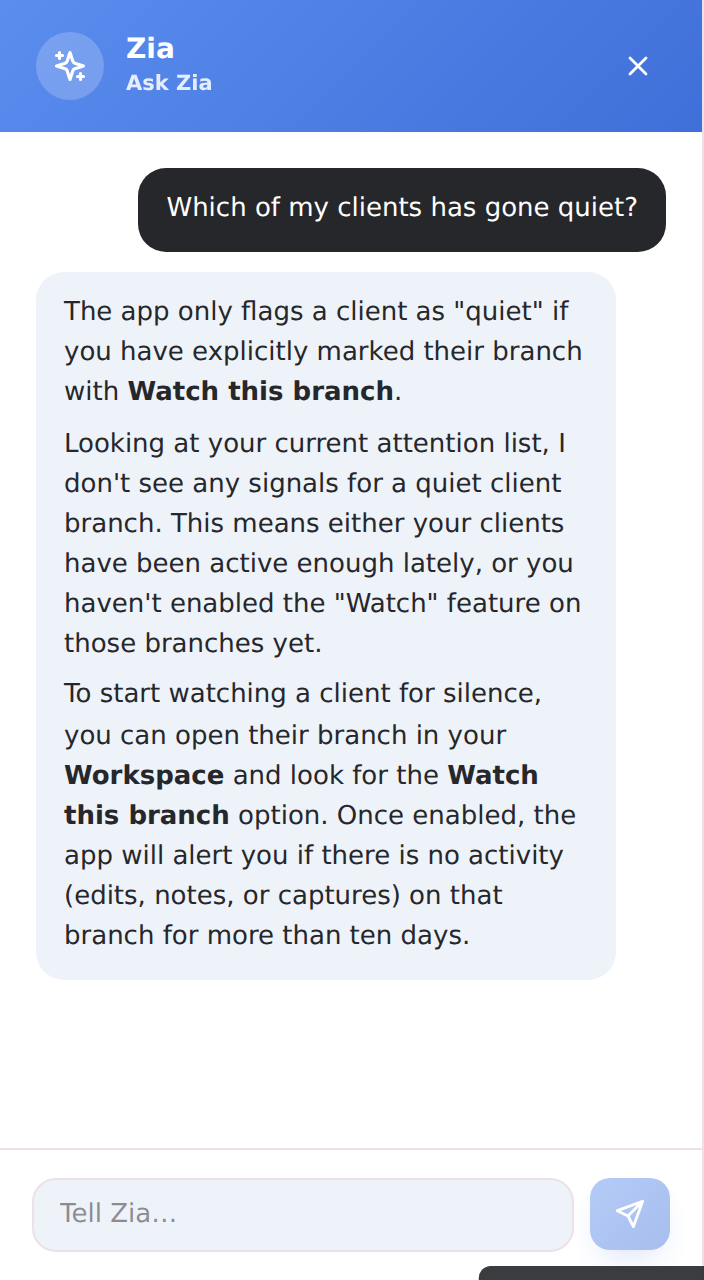
Nothing she proposes happens on its own. She shows you a card listing exactly what she would change, and it happens when you press the button on it — never before. This holds everywhere in Clair, not just on the first run: see section 10.
You can also skip her entirely and build the tree by hand. Once there is one branch on it, the first-run panel never comes back; Zia is then a place you go rather than a thing that is open.
The sidebar
Five places, always in the same order, and they never move.
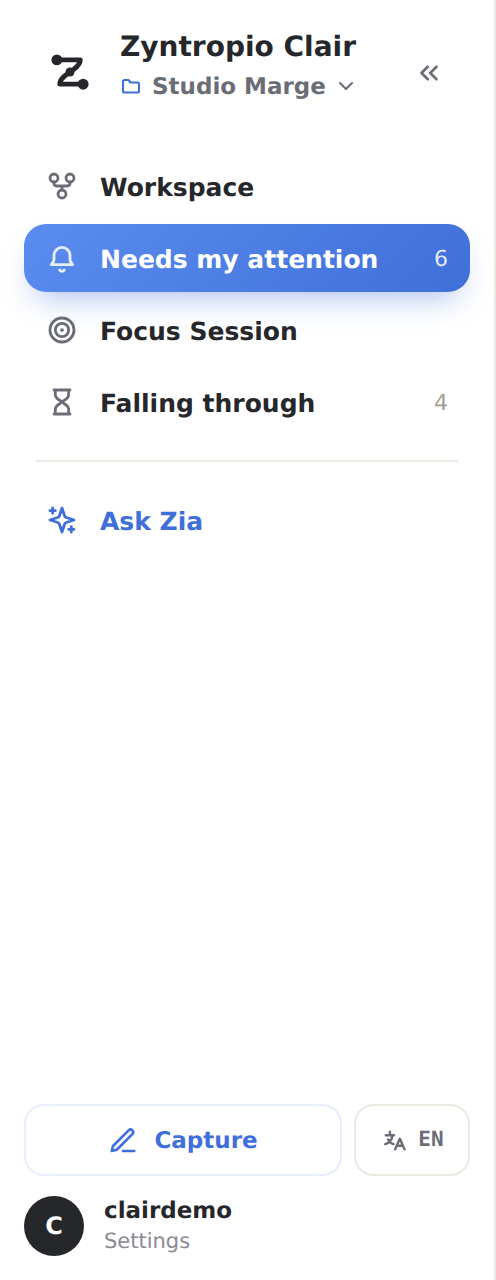
At the bottom sit three more things: Capture (a one-line note, from anywhere — section 09), the language switch EN / FR, and your account, which is the way into Settings and to signing out.
The tree's name is also the File menu
Under Zyntropio Clair at the top. Click it to rename this tree in place, duplicate it, export it, share it, or open and start another — section 12 covers the whole menu.
Folding it away
The « beside the app name narrows the sidebar to icons, so the canvas gets the width. Hovering any icon still tells you what it is, and a place with something waiting shows a dot instead of a number. » brings the labels back.
Folded or not is remembered per device, not per account. It is about the width of the screen in front of you — a sidebar you fold away on a laptop stays open on the bigger monitor you sign in from next.
Your tree
One tree holds everything you are juggling. A branch is usually a client, a prospect, or an area of your business; what hangs under it is the work. There is no depth limit and no fixed vocabulary — nothing is called a "project" unless you call it that.
Building it
The node menu
Right-click any node. Rows only appear where they apply — a node with no children has nothing to collapse, and the central node cannot be deleted.
The properties panel
Double-click a node, or ⚙ Open properties. What is in it depends on the node: a leaf — something you actually do — gets status, dates, who it is for and who is doing it; a branch gets a subtitle, an icon and a colour, and a progress figure rolled up from what is under it. Every field is optional.
The panel has a Save button, and it means it. Changes are held until you press Save; Cancel throws them away and puts the node back as it was. That is unlike the rest of the canvas, where edits go in as you make them.
Finding things, and undoing them
The magnifier at the top right of the canvas — or Ctrl+F — searches the open tree by name. It is search, not a filter: it finds the thing you remember, and it is the Tree view's own control. Beside it, undo and redo cover every change you have made to the tree in this session.
There is no filter bar here, on purpose. Deciding what matters is what Needs my attention is for. A tree you have to filter before you can read it is a tree that is asking you to do the sorting yourself.
Needs my attention
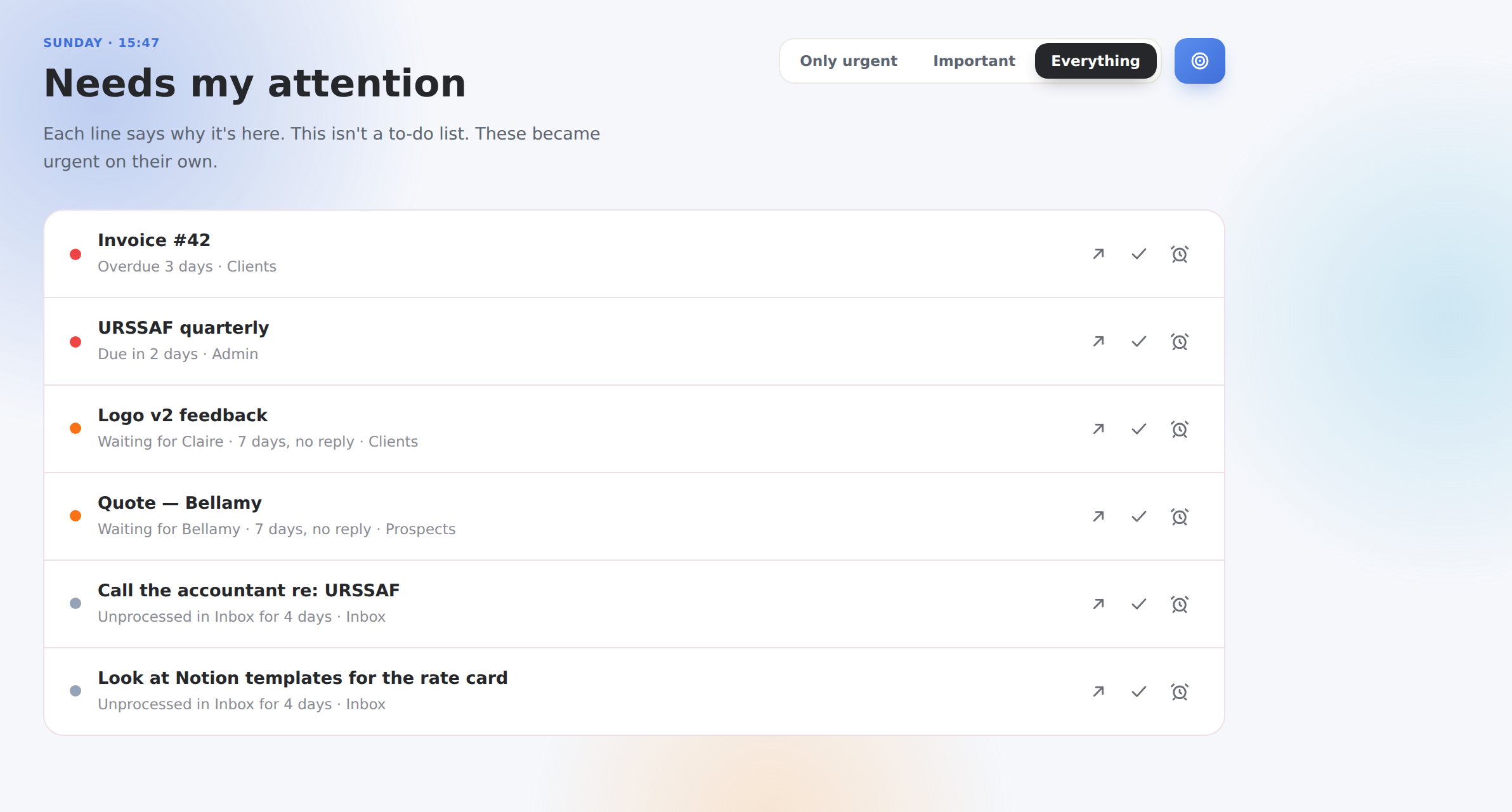
This is not a to-do list. Nothing you write goes onto it, and nothing sits on it forever. Each line is something Clair noticed, with the reason in plain words underneath — and the reason is checkable, never a score.
The five signals
Five, and four of them need no date at all. That is the point of the product: a date on everything is the discipline you do not have time for, and the four below read what you actually did instead.
None of those numbers is a setting, and that is deliberate. A threshold you can raise is a threshold you raise until the warning stops, which is how a warning system quietly becomes a silent one. If a signal is firing too often, the answer is to act on it, mark it Seen, or stop watching that branch.
A quiet client is the one signal you have to opt into. Clair only watches branches you have asked it to — Watch this branch in section 05. If a client never appears here, that is almost always why.
How much reaches you
The filter at the top right sets the level. The three add up rather than replacing each other — Everything includes what the other two show.

What to do with a row
None of the three deletes anything. Every one of them is about the signal, not about the work — the node stays exactly where it is on your tree.
Why am I seeing this?
Pressing Open on a row does not pop a dialog. You get the item's own screen: the tree zoomed to the branch it belongs to on one side, and on the other the rule that fired, the dates and gaps it used, and where the item sits.
Only that branch is drawn, so you can read it — Esc is the whole tree again. If the item lives in a tree you do not currently have open, or is a capture that is not on the tree at all, you get the path to it instead: tree, branch, item.
Answer the question at the bottom. Was this worth telling you about? — Useful, Didn't need it, Wrong. It is recorded, it never changes the order of your list, and it is the only way anyone finds out whether the signals are earning their place. Leaving it unanswered is normal and is never read as a complaint.
Focus Session
Pick one branch, decide what may interrupt you, and optionally set a length. Everything is pre-filled, so starting is one click.
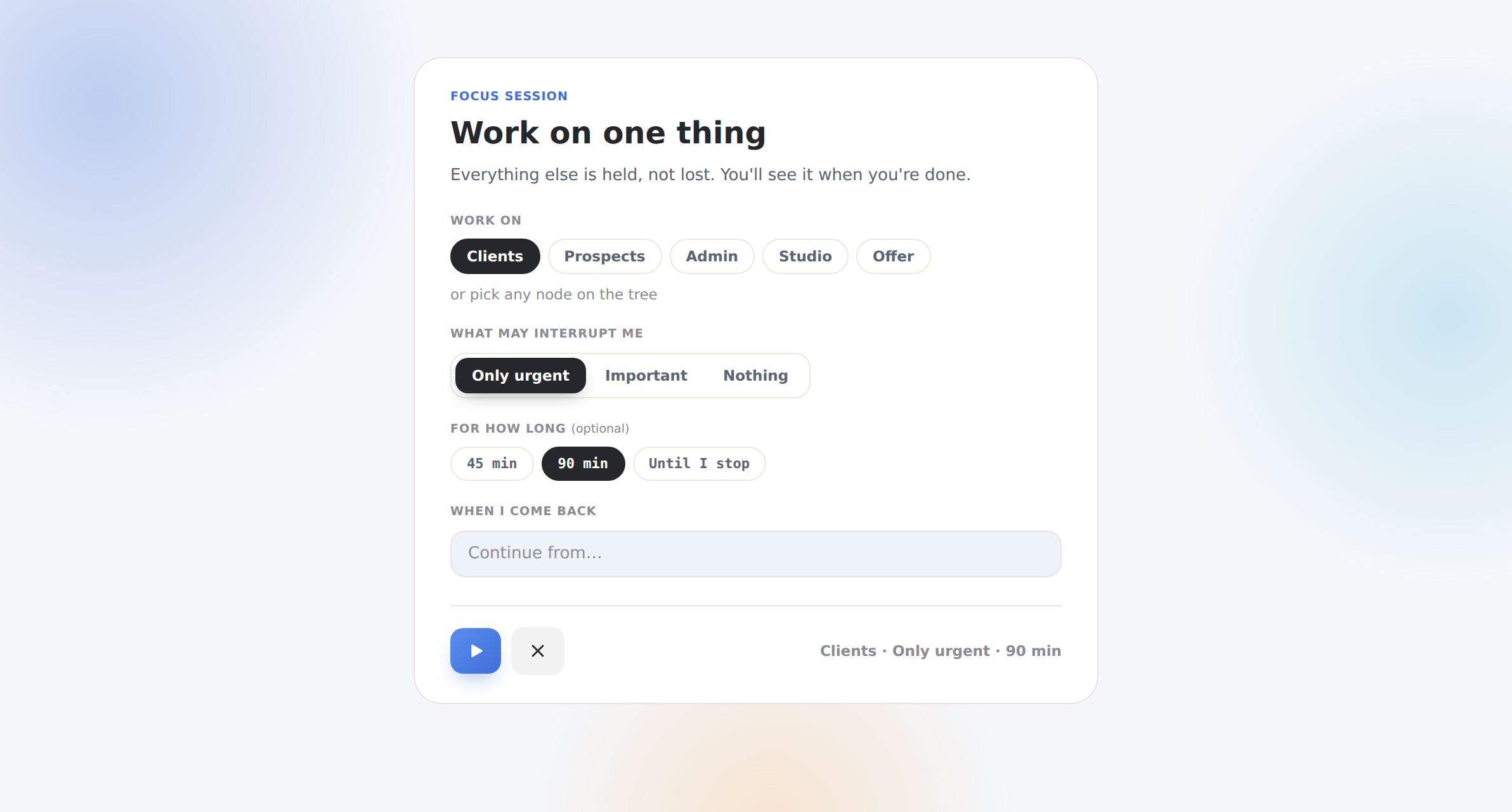
While it runs
The counters beside the sidebar go blank on purpose. The whole point of a session is that the queue stops shouting, and a number that keeps climbing in the corner of your eye is the queue shouting. What you get instead is how many things are being held.
If something does reach you, Later holds it for the rest of the session. It is not a postponement and it does not count as one.
The timer is a display, not a rule. Nothing ends your session but you. It also survives a refresh, a closed laptop and a different device — come back tomorrow and the session is still running, because you never said you were done.
The File menu steps aside while a session runs, and comes back when it ends. Quick capture keeps working throughout; that one is the exception and is meant to be.
While you were focused
Ending a session gives you one list of what was held while you were away, urgent first, with a one-line summary of the session — the branch, how long, how much you changed — and the note you left yourself.
It is a summary of the difference, not a report on everything. Each row can be opened, filed if it was a capture, or marked Seen; Seen all clears the lot and takes you back to the list. Nothing was auto-dismissed while you were gone, and nothing was deleted.
Falling through the cracks
The other screen answers "what needs me now?". This one answers a question you normally only ask at 2am: have I forgotten something? It reads your own activity, not a calendar — which is exactly why it finds the things that were never overdue in the first place.
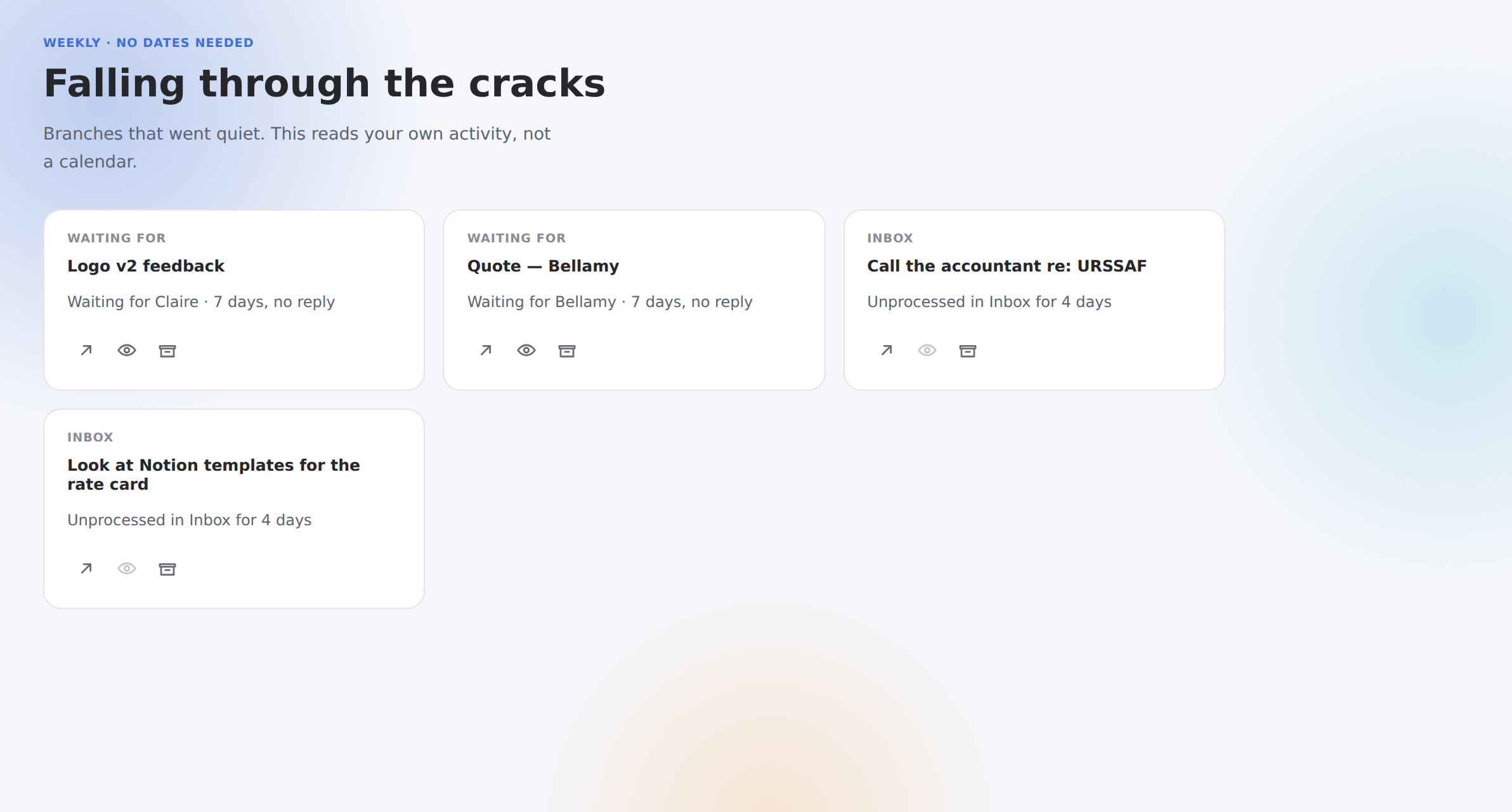
What to do with a card
This view deliberately includes things you have already marked Seen. Seen means "stop signalling", not "handled" — and the person who opens this screen is exactly the one who suspects something slipped past them.
Quick capture
⌘+K (or Ctrl+K), or the Capture button at the bottom of the sidebar. One line is enough. No project, no priority, no date — that list is the cognitive burden this feature exists to remove.
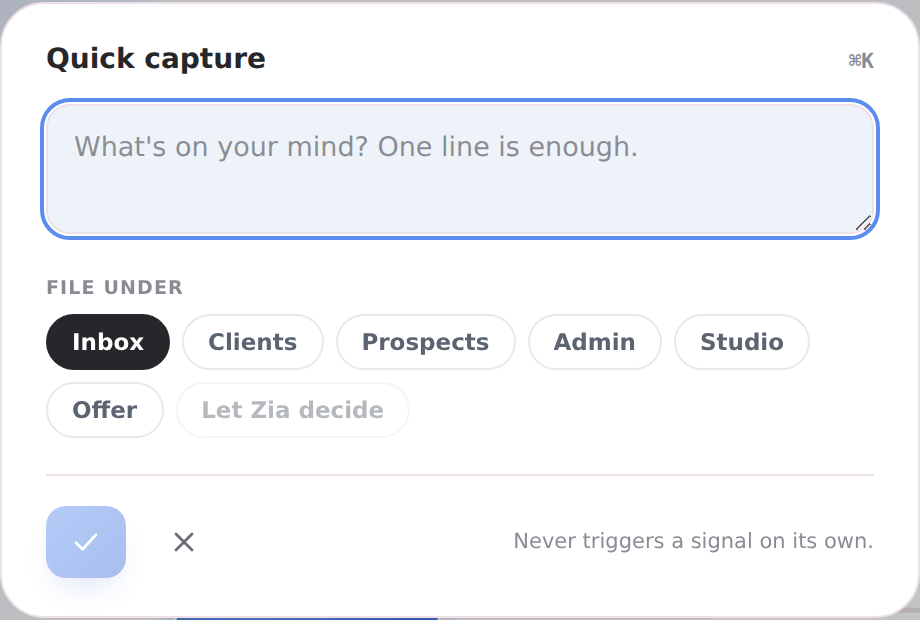
It lands in the Inbox. You can file it under a branch there and then, or leave it and deal with it later — or ask Zia where it should go, and she proposes while you confirm.
A capture never sets off a signal on its own. Writing something down is not a commitment to do it. Only leaving it unfiled for three days raises anything, and even then the line just says how long it has been sitting there.
Ask Zia
Zia reads the tree you have open and the attention list, and answers in the language you have picked. Useful questions are the ones you would ask a colleague who had been watching: which of my clients has gone quiet? what am I waiting on? why is that on my list?
She can propose changes to your tree
Ask her to add a client, rename a branch, move something, set a status, put a date on a task or name who is on it, and she answers with a card headed Here's what I'd change that lists each change in plain words. Press Do it and they happen. Do nothing and nothing happens.
She never changes anything on her own, and she never decides what is urgent. The attention list is worked out before she sees it; her job is to explain what it says, not to re-order it. If she tells you something is on the list, you can go and read the reason yourself — and you should.
She only ever sees your own workspaces — never anyone else's, and nobody else ever sees yours.
The other views
The switcher at the top right of the canvas redraws the tree you already have open. Nothing is converted or copied — it is one tree, shown differently.

An empty Calendar is the normal case, not a broken one. Dates are optional throughout Clair and most trees here will have none at all, so the Calendar says so in words rather than showing you an empty month. Add a date when a real deadline exists; the moment one does, it appears.
Each tree remembers which view you were last using, on this device.
Trees, and sharing
The File menu — the tree's name, under Zyntropio Clair at the top of the sidebar — holds everything to do with the tree as a whole. Two lines of business can live in two trees rather than one crowded one.
Sharing
Sharing is per tree. Turning it on for one leaves every other one private. Anyone with the link can look around, pan, zoom and search — they cannot change anything, and they do not need an account. Turning it off makes the link stop working immediately.
Two things never travel on a share link: the formatted Descriptions you wrote on your nodes, and anything in your other trees. A visitor sees the shape of this one tree and what is on it — nothing else, and nothing about you.
You can also split a branch into a tree of its own from the node menu (section 03), which moves what is under it and leaves a doorway behind.
Settings
Under your account at the bottom of the sidebar. Everything saves as you change it — there is no Save button here.
Every shortcut
On Windows and Linux, Ctrl wherever this says ⌘.
| Keys | What it does | Where |
|---|---|---|
| ⌘+K | Quick capture | Anywhere, including mid-session |
| ⌘+N | Start a new tree | Anywhere |
| ⌘+O | Open one of your trees | Anywhere |
| ⌘+Z | Undo | Workspace |
| ⇧+⌘+Z · ⌘+Y | Redo | Workspace |
| ⌘+F | Search this tree | Tree view |
| Tab | Add a child under the selected node | Tree view |
| Enter | Add a sibling below it | Tree view |
| ⇧+Enter | Add a sibling above it | Tree view |
| F2 | Rename the selected node | Tree view |
| Delete · Backspace | Delete it, and everything under it — it asks first | Tree view |
| ⌘+V | Paste lines of text as children, one per line | Tree view |
| Esc | Close a menu, cancel a rename, clear the search, leave a zoomed branch | Everywhere |